BIG NEWS: Homestead is a 2026 BBB Torch Awards for Ethics Finalist.
READ THE STORY →

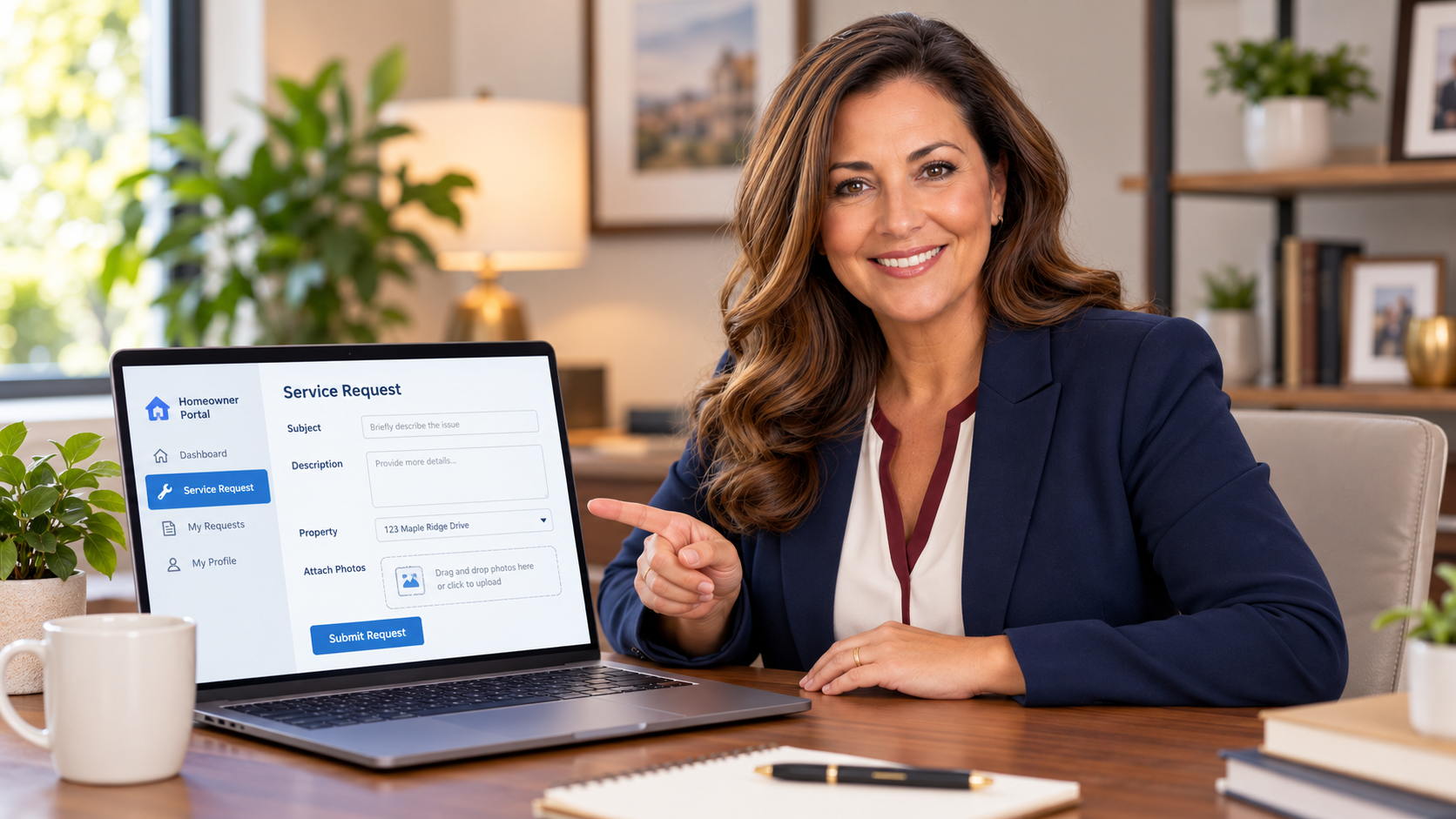
To submit a service request, log in to your Homestead homeowner portal and select Requests from the left-hand menu. Click New Request, choose Service Request, and complete the form with a subject, description, and property selection. You can also attach photos before clicking Submit Form to send your request to management for review.
Need to report a maintenance issue or request assistance with something in your community? Your Homestead homeowner portal makes it easy to submit a service request directly to your community management team.
To get started, log in to your homeowner portal, select Requests, and choose New Request. From there, select Service Request, provide the details of your issue, and submit the form.
Watch Hannah walk you through the entire process in this short tutorial (above).
After logging in to your Homestead homeowner portal, locate the Requests icon on the left-hand side of your screen.
Click the icon to open the Requests section.
Click New Request.
A menu will appear with the available request options. Select Service Request to continue.
Scroll down until you see the Service Request option.
Click either the Service Request title or the small arrow next to it to expand the form.
Complete the requested information:
Helpful tip: Be as specific as possible. For example, instead of writing "broken sprinkler," explain where the sprinkler is located and what appears to be wrong.
Once you've completed the form, click Submit Form.
Your request will be sent to your community management team for review and follow-up.
Submitting a request does not necessarily mean that a repair has been approved or scheduled. The next steps may depend on the issue, your association's maintenance responsibilities, and any additional information needed.
The homeowner portal is a convenient way to submit routine service requests, but it should not be used as a substitute for emergency assistance.
For immediate danger, call 911. For an urgent community maintenance emergency, use your association's designated emergency contact procedure rather than relying solely on a routine portal submission.
Hannah, Homestead's virtual assistant, is available 24/7 to help answer questions about your community and guide you toward the information or assistance you need.
Need help with another portal feature? Explore our other Homeowner Portal Tutorials to learn how to access documents, review your account, and more.